- First confirm that the exact robot supports saved maps; some navigation systems show a temporary route but cannot store or edit a floor map.
- Preserve the current map and screenshots, then check dock position, manual movement, blocked doors, floor traction and approved navigation sensors before remapping.
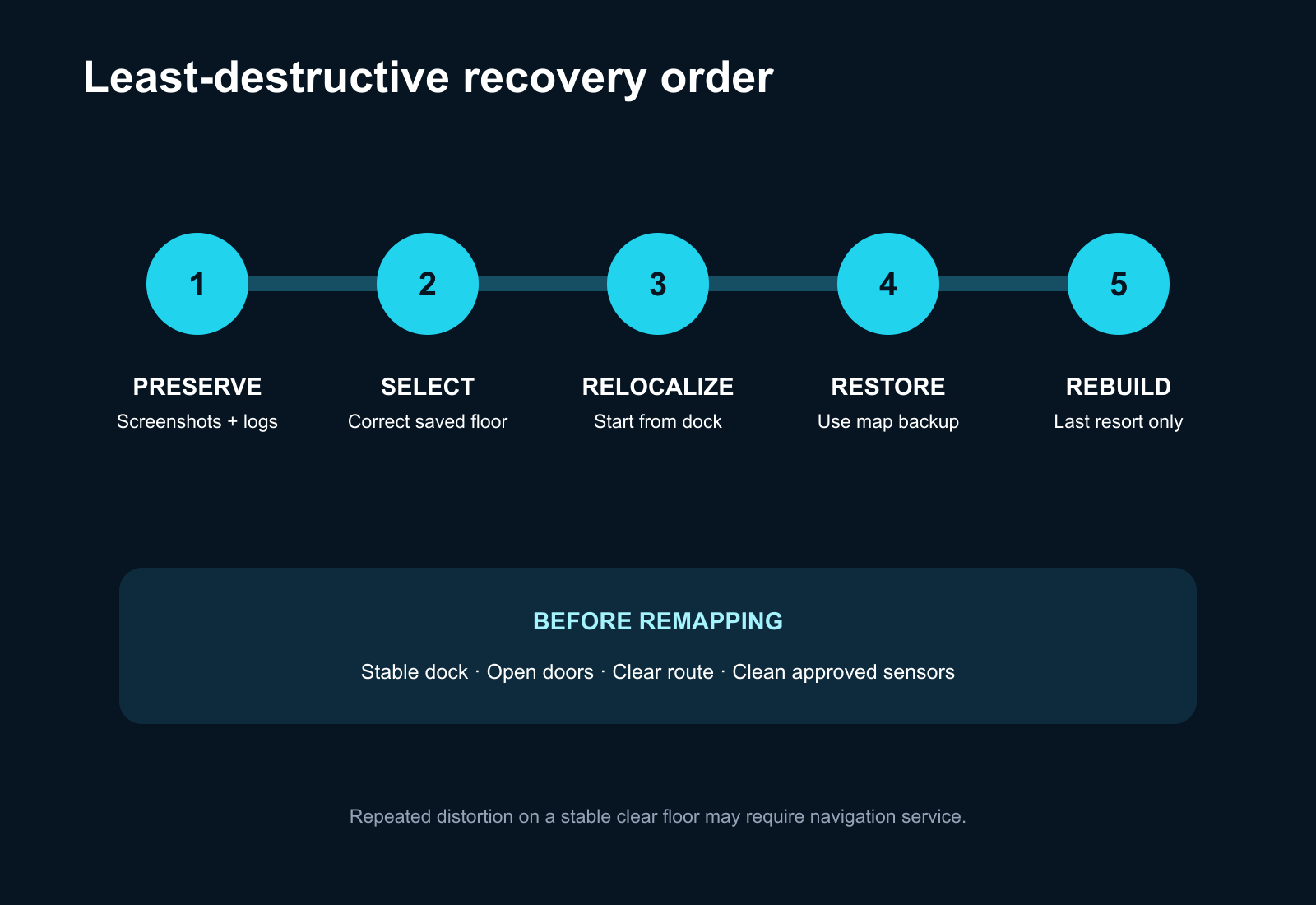
- Delete and rebuild a map only after backup or recovery options fail; repeated distortion on a stable clear floor may require firmware support or navigation service.
In this article 12 sections
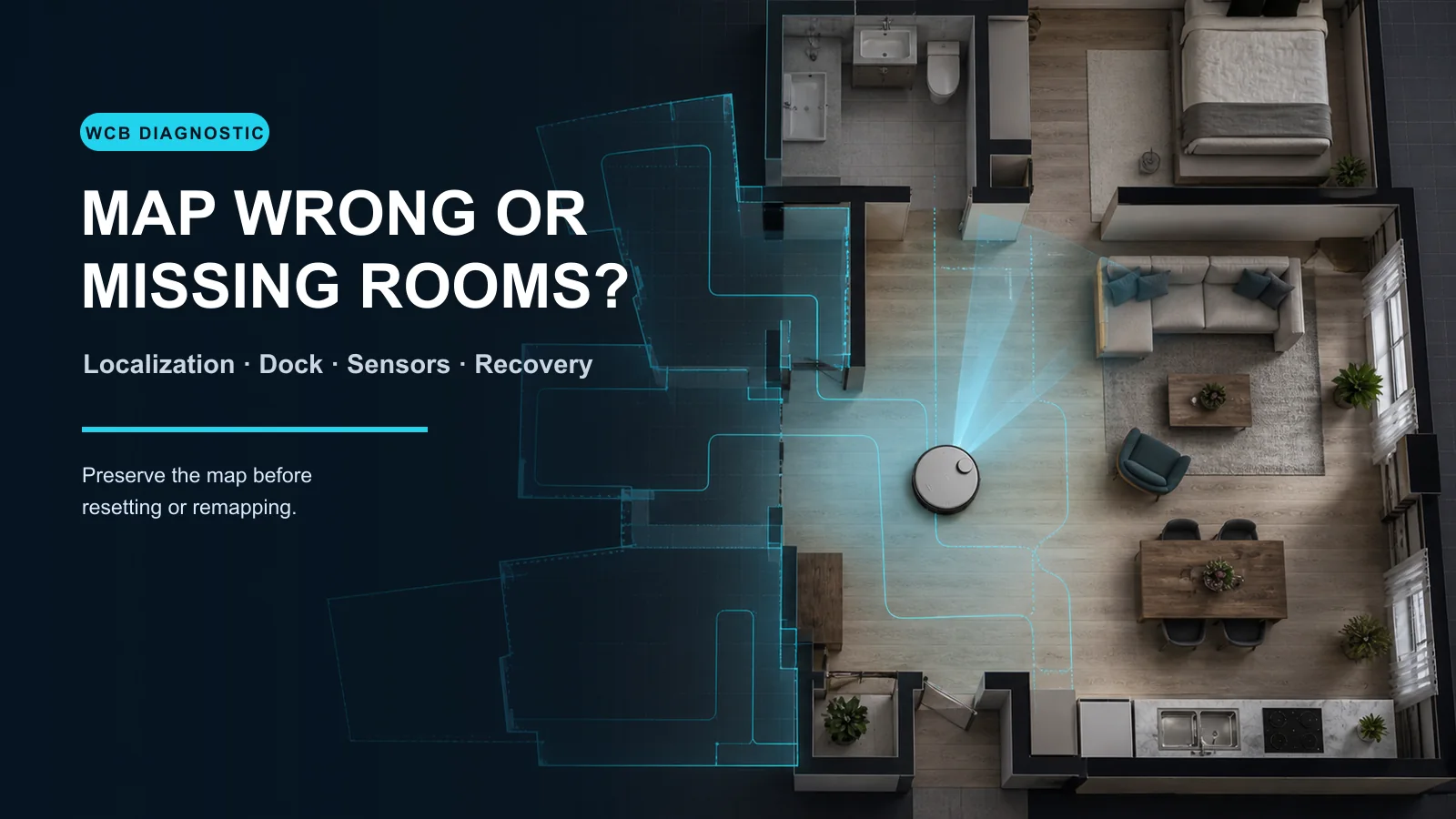
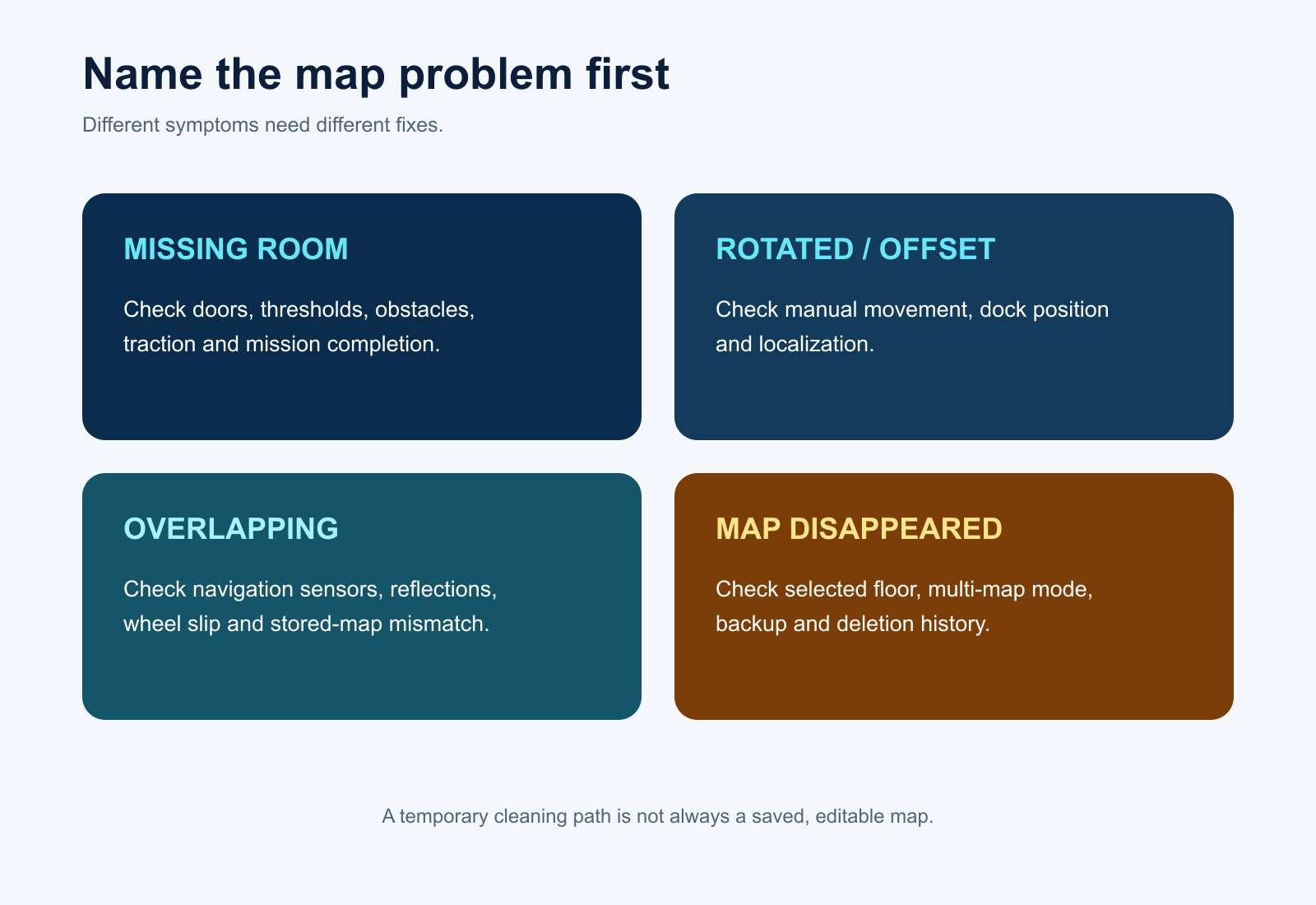
If your robot vacuum map is wrong or missing rooms, first confirm that the exact model supports saved maps. Then preserve screenshots and any backup before changing the map. Offset, rotated or overlapping maps usually point to localization trouble; missing rooms can come from closed doors, obstacles, floor slip, incomplete coverage or a mission that did not finish and save.
Do not delete the map first. A reset can remove no-go zones, room names and the evidence needed to distinguish a one-time positioning problem from a recurring sensor, dock or software fault.
Map Problems at a Glance
| What you see | Leading area to check | First safe action |
|---|---|---|
| No saved map option | Model capability or App mode | Check the exact manual and navigation type |
| One room is missing | Door, threshold, obstacle, traction or incomplete mission | Open access and compare the cleaning path |
| Map is rotated or offset | Robot moved, dock moved or localization failed | Preserve the map and start once from the dock |
| Rooms overlap or walls appear skewed | Localization, reflective surfaces or sensor visibility | Clean approved sensors and stabilize the environment |
| Map disappeared | Wrong floor selected, multi-map setting, deletion or failed positioning | Check map management and backups |
| Dock appears in the wrong place | Dock moved or robot repositioned incorrectly | Return dock and robot to the mapped location |
| Physical route is wrong as well as the App map | Wheel slip, obstruction, sensors or navigation fault | Run a short clear-floor isolation test |
1. Confirm the Robot Can Save a Map
Not every robot vacuum stores a reusable floor map. eufy's official navigation overview, for example, separates Bounce and Dynamic Navigation models that do not store maps from iPath LiDAR models that can.
A temporary cleaning path is not necessarily a saved editable map. Check whether the exact model supports room division, multiple floors, map backup, no-go zones and selective room cleaning before diagnosing a missing feature as a fault.
2. Preserve Evidence Before Resetting
Take screenshots of:
- the full current map and selected floor;
- the completed cleaning path;
- missing, rotated or overlapping areas;
- dock position and room boundaries;
- firmware and App versions;
- any map-recovery, backup or multi-floor controls;
- the exact time of the affected mission.
Also photograph the physical dock location and any closed door, mirror, reflective surface, threshold or obstacle near the failed area. Support teams may be able to use uploaded logs, but only if the original event is still identifiable.
3. Start from the Dock and Do Not Move the Robot
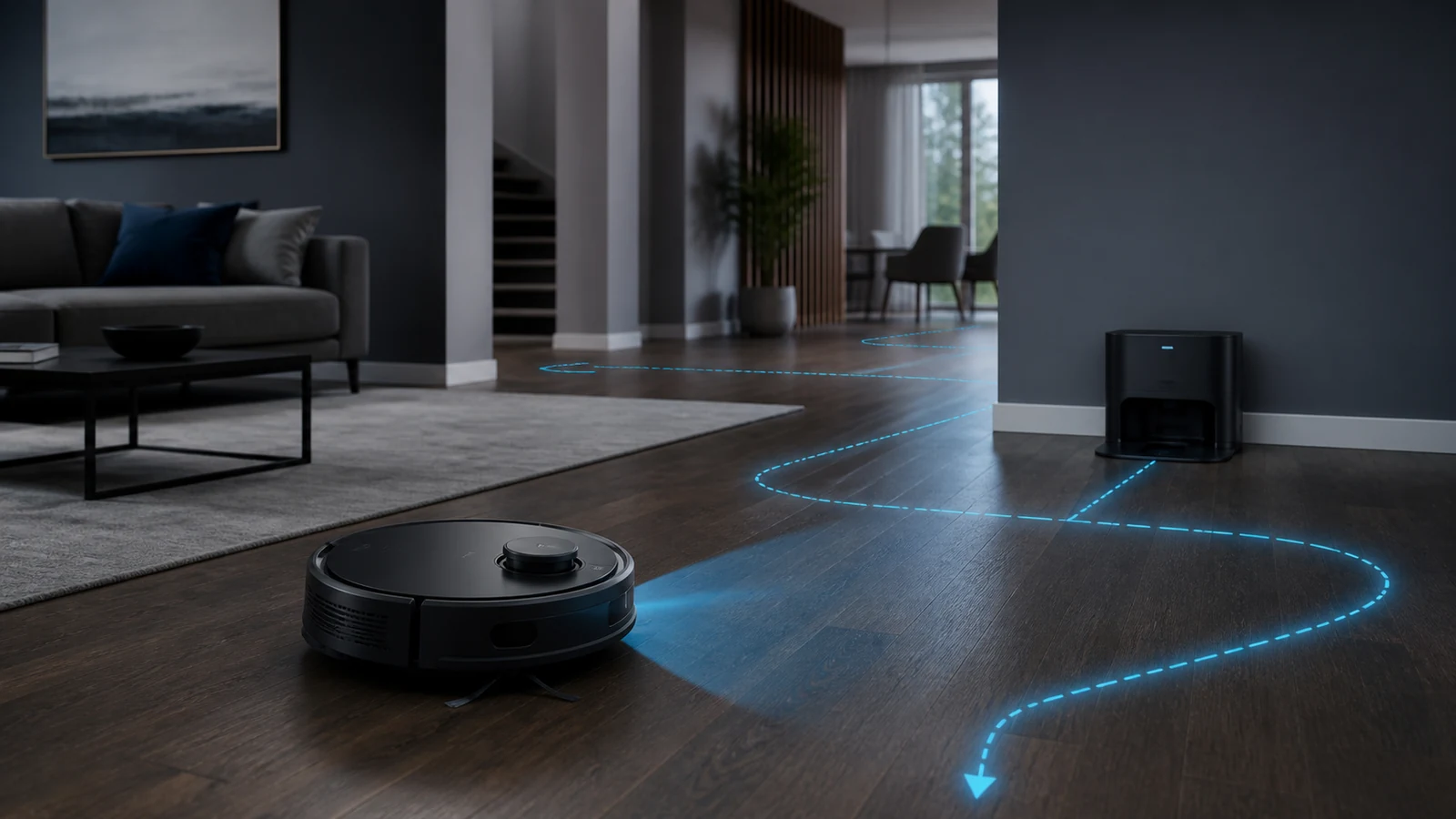
Saved-map systems often use the dock and known surroundings as localization anchors. Moving the robot or dock can make the current view inconsistent with the stored floor.
Return both to their normal mapped positions. Start one normal or mapping mission from the dock and avoid carrying, steering or manually sending the robot to charge. eufy's X8 guidance says a map is normally saved after a complete Auto Clean cycle that returns to the base; manual movement or an incomplete cycle can prevent a valid save.
If the robot cannot return to its base, resolve that separate problem with the return-to-dock guide.
4. Restore Physical Access to Missing Rooms
Open every door that should be mapped. Remove cables, slippers, light rugs and temporary barriers. Check whether a threshold or deep carpet stops the robot from entering.
eufy's missed-area guidance asks owners to confirm the mission started from the station, doors were open, obstacles were removed and the robot was not moved. Dreame manuals likewise identify closed access, slippery floors and route interference as reasons a room or area may be missed.
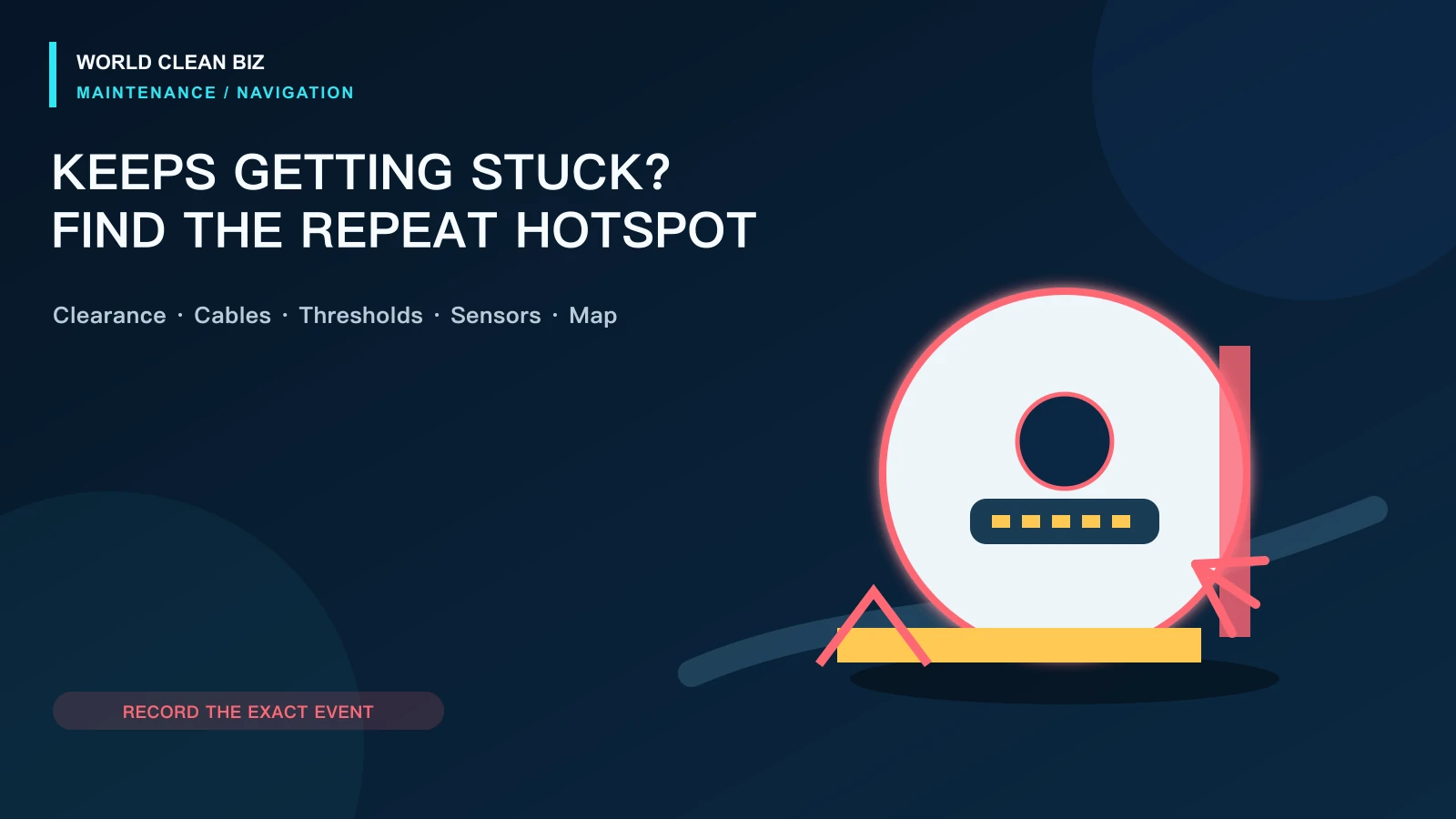
If the robot repeatedly gets trapped at the boundary, use the getting-stuck guide. A room the robot physically cannot enter cannot be repaired only by editing the map.
5. Check Wheels, Bumper and Approved Sensors
Dirty navigation windows, a wheel that slips or an uneven bumper can make the estimated route diverge from the real route. Clean only the surfaces and assemblies listed in the manual.
Run a short mission on clear, dry hard floor:
- Physical path and App path both distort: investigate traction, wheels, bumper and navigation sensors.
- Physical path looks normal but the map rotates or jumps: localization, stored map or software becomes more likely.
- Only one dark, glossy or mirrored area is wrong: record the surface and follow model-specific guidance.
- Robot circles or arcs on every surface: use the circling guide before remapping repeatedly.
Never cover cliff sensors or use liquids on optical windows unless explicitly permitted.
6. Check App, Floor and Multi-Map Settings
Confirm that the correct robot, home and floor are selected. Check whether multi-map saving is enabled and whether a valid map exists in map management or backup.
eufy documents that some models may hide or replace maps when multi-map saving is off, positioning fails or the dock or robot moves to a different layout. Limits differ by model, so do not assume every product stores the same number of floors.
Room division is also separate from map geometry. If the walls are correct but room partitions are wrong, use the App's supported merge, divide and rename tools instead of rebuilding the entire floor.
7. Recover Before You Rebuild
Use the least destructive option first:
- select the correct saved floor;
- restore an available backup;
- return robot and dock to the known location;
- restart the App or robot only as the exact procedure states;
- complete one full mapping or Auto Clean mission;
- delete and rebuild only if the map remains unusable.
Dreame separates lost maps, skewed maps, saving failures and partition errors into different support categories. That is a useful discipline: identify which failure exists before using the most destructive remedy.
8. When to Use Service
Use manufacturer support when a map repeatedly rotates, overlaps or disappears despite a stable dock, an unchanged floor, clean approved sensors and a complete mission. Provide logs when the App offers an official upload feature.
Authorized service is appropriate when a navigation sensor is cracked, wet, obstructed internally or mechanically damaged; wheel movement is unequal; localization fails on every clear floor; or the fix requires opening the LiDAR, camera, wheel or control enclosure.
FAQ
Why is my robot vacuum map missing a room?
The robot may not have entered the room because of a closed door, obstacle, threshold, carpet, wheel slip or an incomplete mission. Confirm physical access and the recorded path before editing the map.
Why did my robot vacuum map rotate or shift?
The robot or dock may have moved, localization may have failed, or the saved map may no longer match the environment. Preserve the original and start once from the normal dock position.
Should I delete the map and start again?
Only after checking the selected floor, multi-map settings, backup and localization. Deleting a map can remove room labels and no-go zones and may not repair a hardware or traction fault.
Why does the map disappear after moving the robot upstairs?
The product may require multi-floor map saving or a second mapped dock environment. Exact storage rules and floor limits vary by model.
Can dirty LiDAR or camera windows cause a wrong map?
Contamination can interfere with navigation on supported models. Clean only the approved external sensor surfaces using the exact manual's method.
Final Answer
When a robot vacuum map is wrong or missing rooms, first confirm saved-map capability and preserve the current map. Start from the normal dock, avoid moving the robot, open room access, remove obstacles and check the cleaning path, wheels, bumper and approved navigation sensors.
Use the correct floor, multi-map setting or backup before deleting anything. Repeated distortion under stable clear conditions requires model-specific firmware support or authorized navigation service.