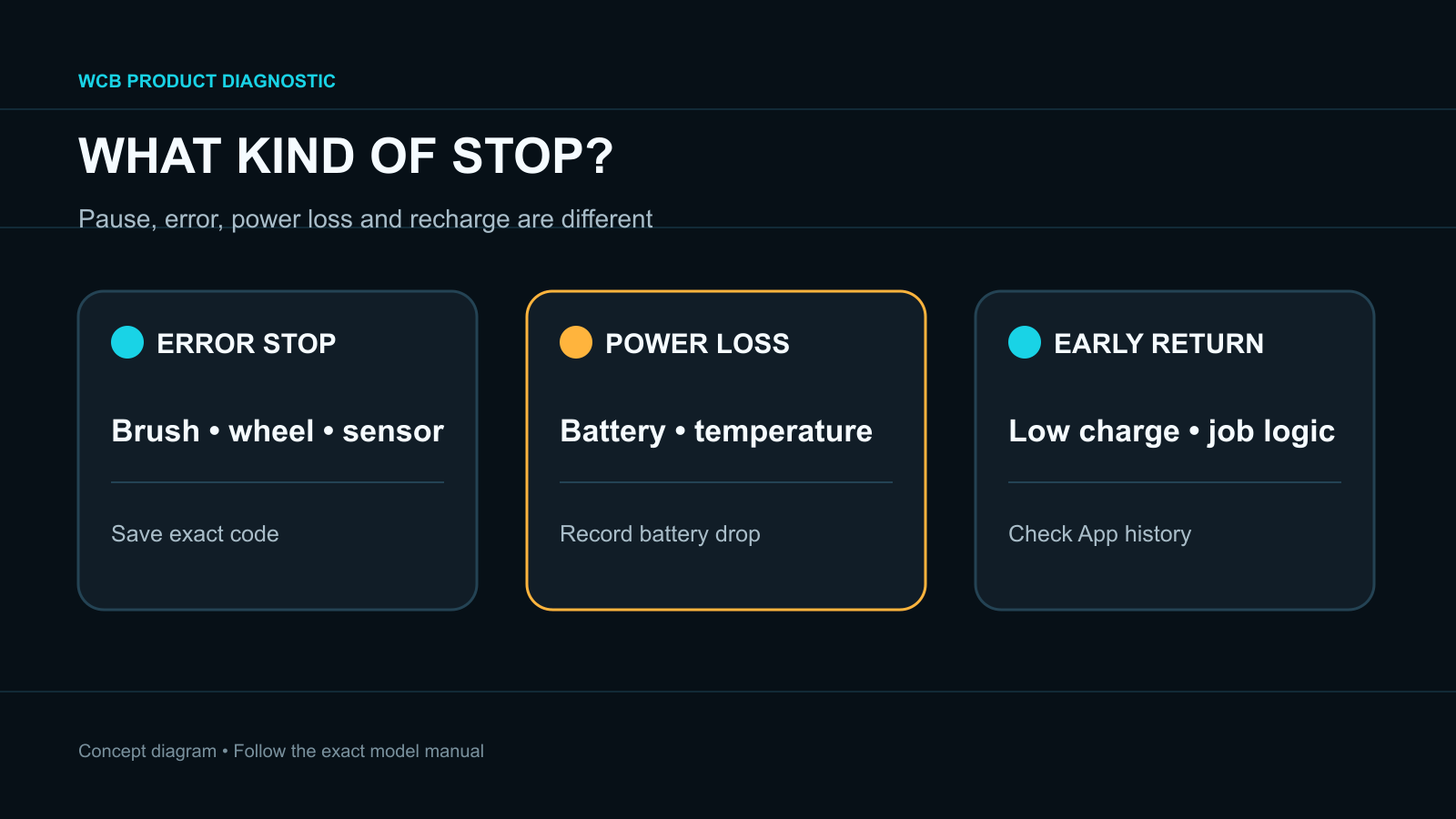
- Record whether the robot pauses, powers off, reports an error or returns to charge; those are different failures.
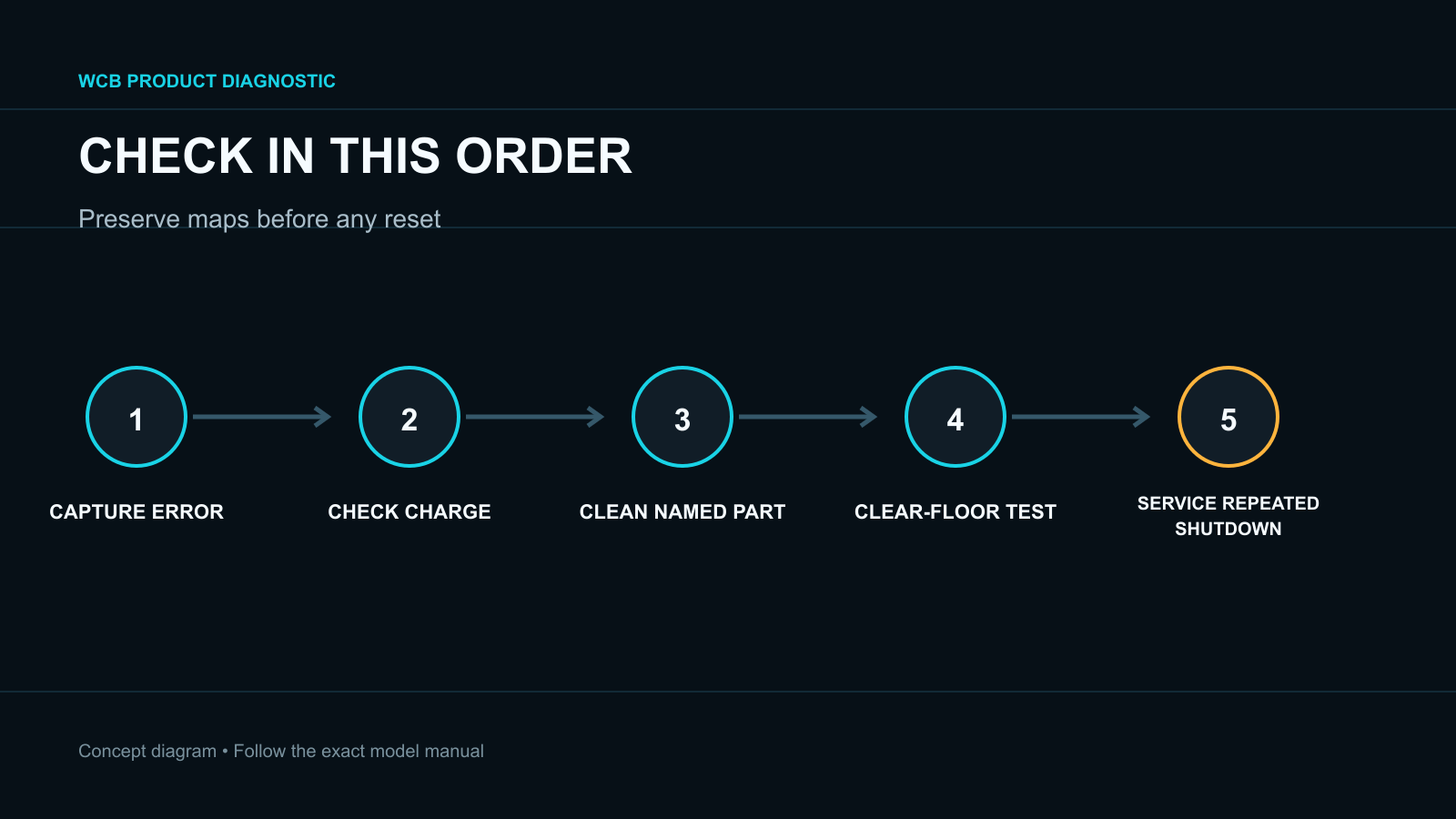
- Check charge, the exact error, brush and wheel movement, bumper and cliff sensors, bin, filter and intake before resetting maps or firmware.
- Repeated shutdowns, overheating, liquid intrusion or an internal battery, fan, wheel or control fault belong with authorized service.
In this article 12 sections
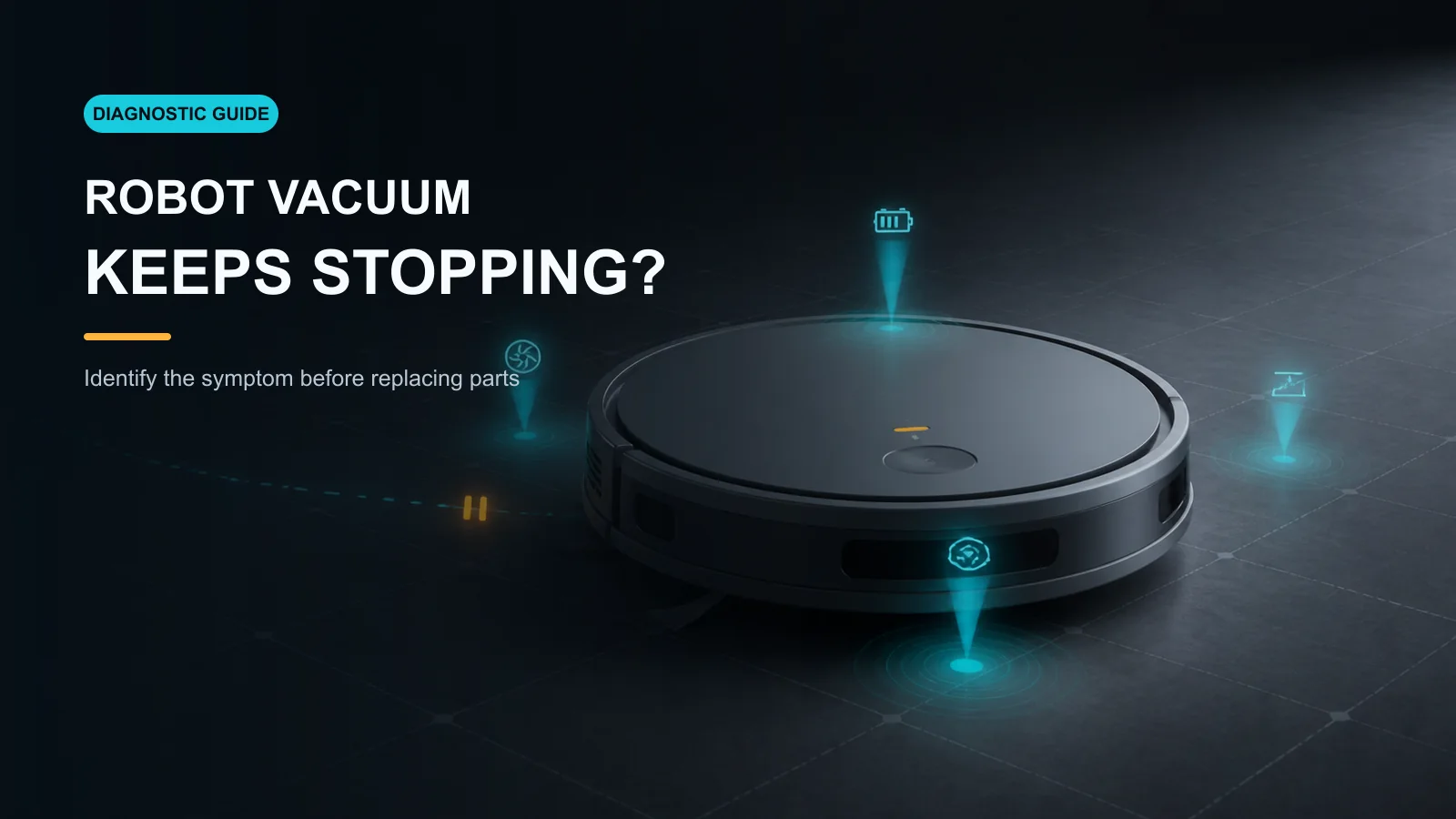
If your robot vacuum keeps stopping, first identify what “stopping” means. A robot that pauses and shows an error is different from one that loses power, returns to charge, becomes trapped or waits because the job was paused in the App. Record the battery level, lights, voice message, App error, location and elapsed time before moving or restarting it.
Start with charge and the exact error, then inspect user-serviceable brushes, wheels, bumper, cliff sensors, bin, filter and intake. Do not begin with a factory reset: it can erase maps and evidence without repairing a mechanical or battery fault.
Stopping Patterns at a Glance
| What happens | Leading area to check | First safe action |
|---|---|---|
| Stops and reports brush error | Main or side brush obstruction | Power off and clean the named assembly |
| Stops with wheel or bumper error | Wheel, caster, bumper or local obstacle | Clear the area and compare moving parts |
| Stops near dark floor or a drop | Cliff sensor, surface or real hazard | Move to a safe floor and clean approved sensors |
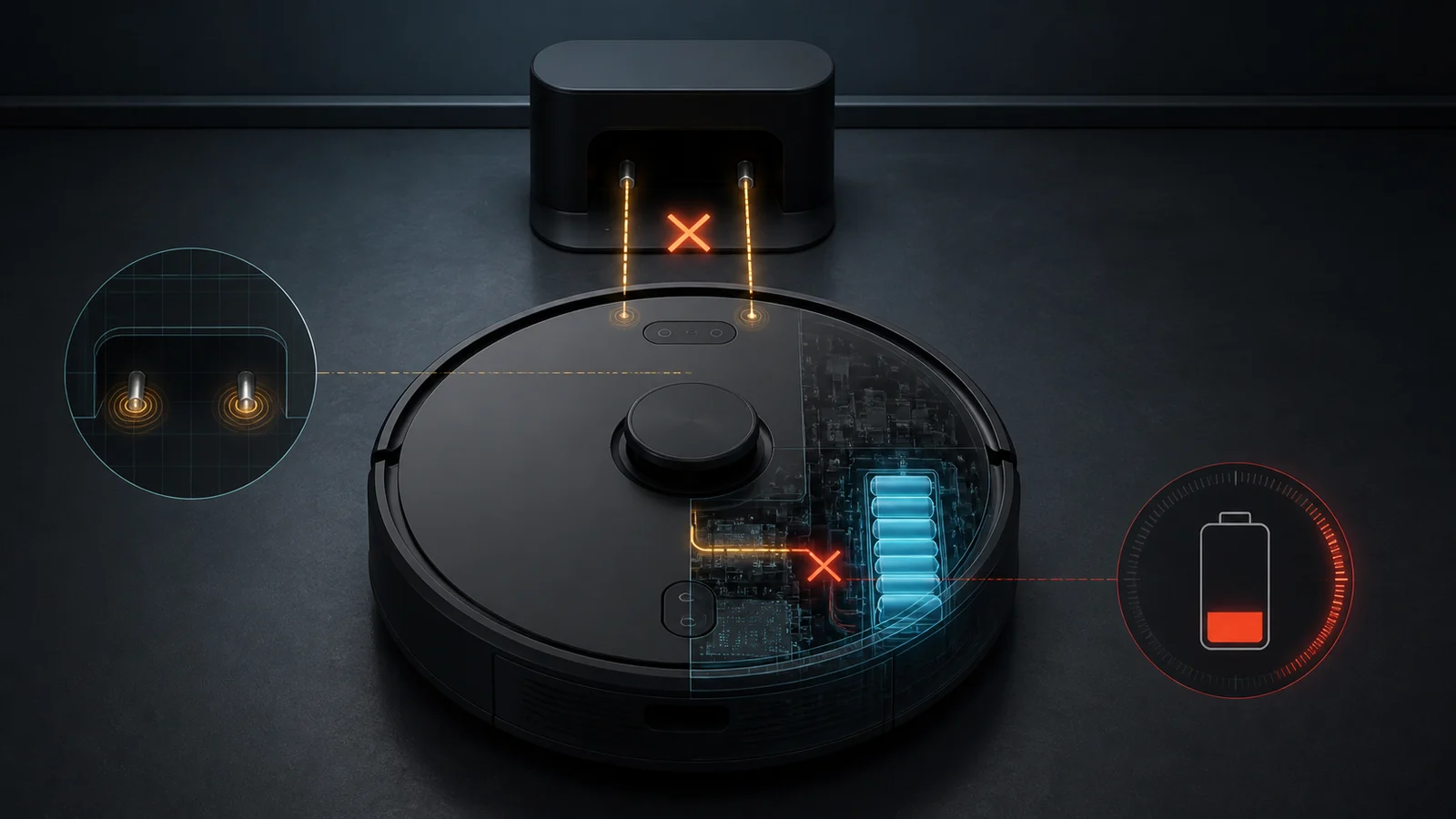
| Powers off with no message | Battery, connection, temperature or internal fault | Charge normally and record timing; avoid repeated cycling |
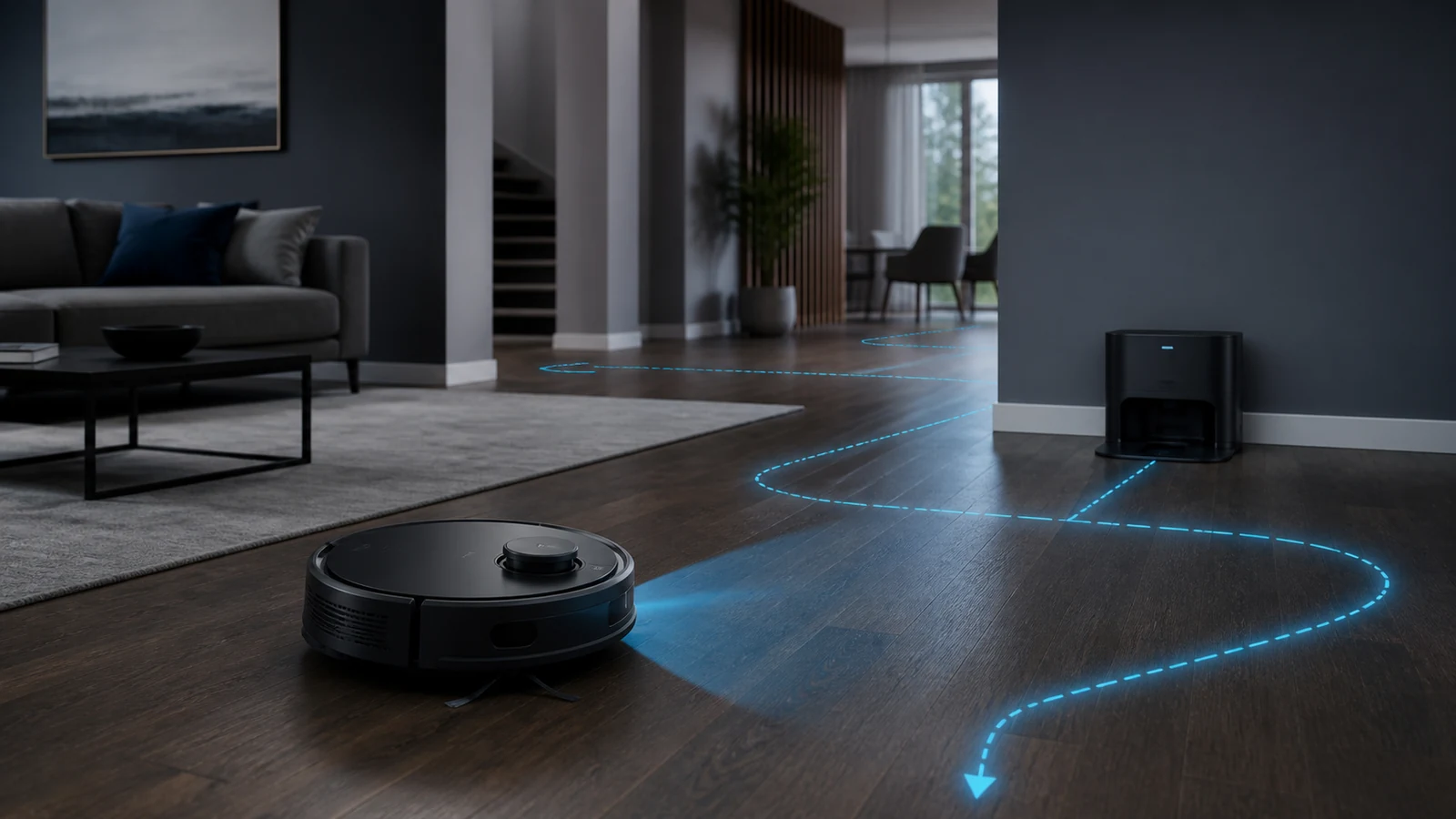
| Returns to dock early | Low charge, large job or model behavior | Check battery level and completed-job history |
| Stops after suction becomes loud | Full bin, filter, intake or fan | Service the airflow path |
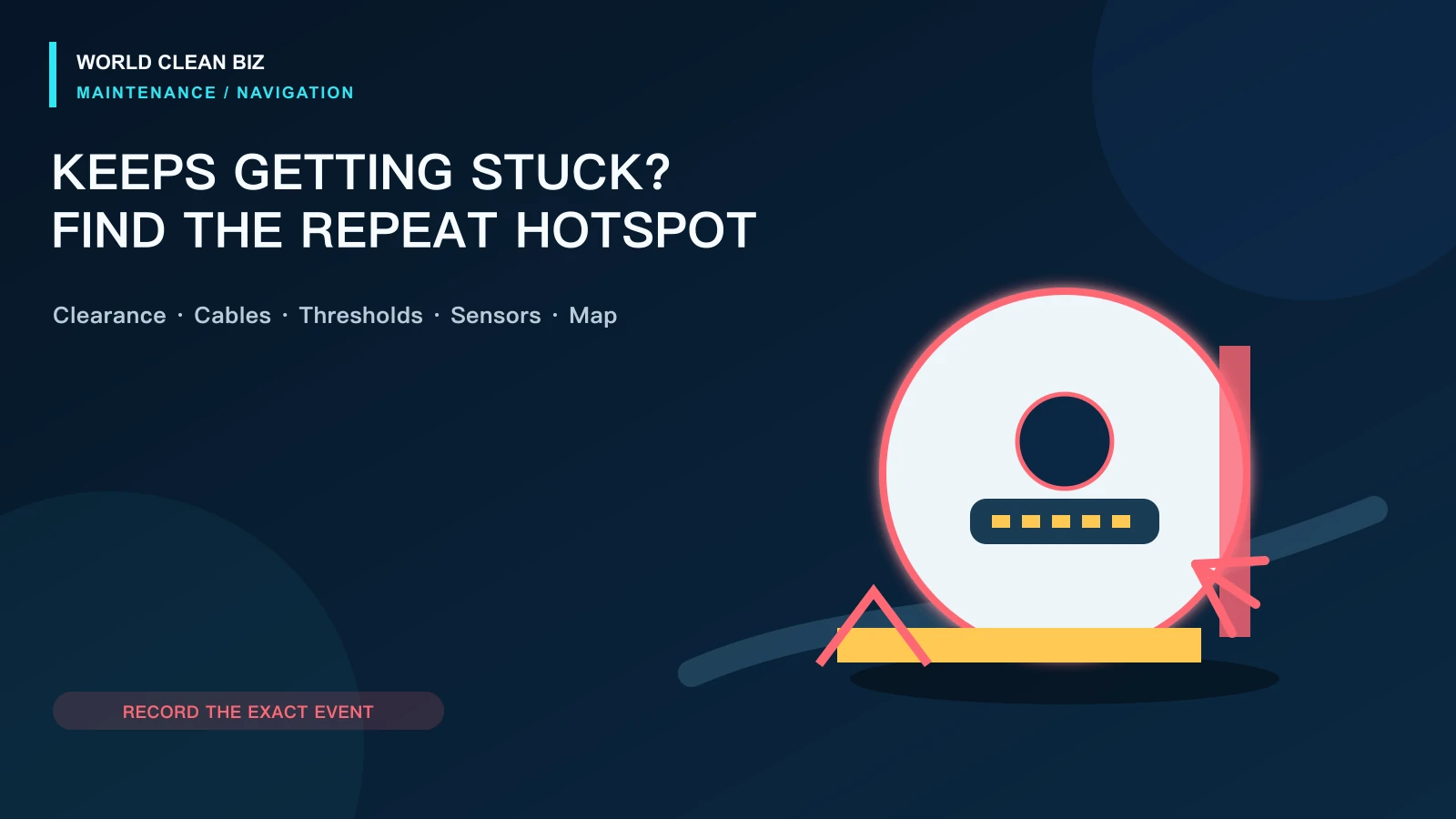
| Pauses in the same location | Cable, threshold, furniture or map zone | Photograph the location and remove the local cause |
1. Capture the Stop Before Restarting
Take a photo of the robot's position and save the App screen. Record:
- battery percentage and whether it changed suddenly;
- indicator color, voice prompt and error number;
- whether brushes or wheels were blocked;
- the room, surface and nearby obstacle;
- how long the robot had been cleaning;
- whether it paused, shut down or drove back to the dock.
This evidence separates a mechanical protective stop from a power loss, navigation trap or normal recharge behavior.
2. Confirm Charge and Normal Job Behavior
A low battery can end or interrupt a mission. Some models return to charge and later resume; other modes, settings or older navigation systems behave differently. Check the completed-job history before treating an early dock return as a failure.
If the robot will not gain charge, use the dedicated robot vacuum charging guide. If it cannot find the base, use the return-to-dock guide. Do not combine those different symptoms into repeated map deletion.
Temperature limits are model-specific. Allow a robot that is unusually hot or cold to return to its stated operating range, but stop immediately for swelling, smoke, melting, burnt odor or unusual heat.
3. Read the Error Before Cleaning Parts
Official eufy guidance distinguishes wheel, bumper, brush, cliff-sensor and suction-fan errors. The correct first check follows the reported subsystem; a generic restart can hide the pattern temporarily.
- Brush error: remove hair and debris from the complete approved brush assembly.
- Wheel error: check visible debris, spring movement and whether one wheel differs from the other.
- Bumper error: remove dust around the accessible bumper and confirm it returns normally.
- Cliff-sensor error: move the robot away from a drop, clean the approved sensor windows and note dark or reflective flooring.
- Fan or suction error: empty the bin, clear the intake and service the filter as instructed.
Do not cover cliff sensors or force a jammed part to make the robot continue.
4. Check Brushes, Wheels and the Bumper
Power the robot off. Remove hair from the main brush, both ends and caps, the side-brush hub and accessible wheel or caster areas. Check that the brush guard is latched and the bin is fully seated.
If the same location also traps the robot physically, use the robot vacuum stuck guide. A repeated environmental trap and a random error stop require different fixes.
Do not open a sealed drive-wheel, brush-motor or electrical module unless the manufacturer explicitly defines it as owner-serviceable for the exact model.
5. Check Sensors and the Cleaning Area
Clean only sensor surfaces named in the manual, usually with a dry or model-specified method. Inspect the bumper and remove cables, rug fringe, socks and light objects that can be pulled into the cleaning head.
Run a short supervised test on a clear, dry hard floor away from stairs:
- Works in the clear area: the original surface, obstacle or map zone is the leading cause.
- Stops with the same error: preserve it and remain focused on the named subsystem.
- Powers off again without an error: stop repeated cycling and investigate battery, power or internal electronics through service.
6. Service the Airflow Path
A full bin, loaded filter or blocked intake can trigger poor pickup, a fan error or overheating on some products. Empty and reinstall the bin, service the filter correctly and clear accessible passages.
Never run without the required filter. If washing is allowed, wait for complete drying. Stop if the robot has picked up liquid or moisture has reached the fan or electrical compartment.
7. Use Restart and Reset in the Right Order
After the physical checks are complete, perform the model's normal restart once. Preserve maps, settings and screenshots before any stronger reset.
A factory reset is reasonable only when official instructions connect it to the symptom and mechanical, power and sensor causes have been excluded. It is not a substitute for a wheel that cannot turn, a fan error or a battery that drops voltage under load.
When to Stop and Use Service
Use authorized service when the robot repeatedly powers off on a clear floor, battery percentage falls abruptly, the housing or battery area becomes hot, a brush or wheel error returns after approved cleaning, the fan error persists, liquid entered the robot or the repair requires opening the enclosure.
Provide the model, serial number, firmware, battery level at startup and stopping, exact error, elapsed runtime, floor type and a short video.
FAQ
Why does my robot vacuum stop after a few minutes?
Possible causes include low or deteriorated battery performance, a brush or wheel obstruction, a sensor error, restricted airflow, temperature limits or an internal fault. The battery level and exact error are the fastest separators.
Why does it stop on dark carpet?
Some cliff-sensor systems can interpret dark surfaces as a drop. Clean the sensors and follow the exact model guidance; never cover a safety sensor.
Should I factory-reset a robot vacuum that keeps stopping?
Not first. Save the error and map, check charge, mechanical parts, sensors and airflow, then use only the reset specified for the exact model.
Why does it return to the dock before the room is clean?
The battery may be low, the job may exceed one charge, or the model may be following recharge-and-resume logic. Check the App history and battery level before diagnosing navigation.
Can a clogged filter make the robot stop?
On some products, restricted airflow can contribute to fan errors, reduced performance or heat. Service the bin, filter and intake according to the manual.
Final Answer
When a robot vacuum keeps stopping, determine whether it paused, reported an error, lost power or returned to charge. Save the battery level, location and exact message, then check the named brush, wheel, bumper, cliff sensor or airflow path. Use one clear hard-floor test to separate the room from the robot.
If it repeatedly shuts down, overheats or returns the same internal error after approved cleaning, stop cycling it and use authorized service.
Official Sources
- eufy: RoboVac Stops in the Middle of Cleaning with a Three-Beep Error
- eufy: Voice Alerts and Quick Solutions for G-Series RoboVac
- eufy: Error 2 / Error S2 Wheel-Module Troubleshooting
- Roborock S4 User Manual and Troubleshooting Table
- Dreame Robot Vacuum and Mop User Manual: Stops, Noise and Route Checks