- First distinguish an asleep or fully discharged robot from one that is correctly charged but completely unresponsive.
- Confirm the approved dock has power, the robot is seated normally, any main power switch is on and the product is within its permitted temperature range.
- Use only the exact model's wake, restart or reset procedure; swelling, heat, odor, liquid damage or persistent no-power symptoms require authorized service.
In this article 12 sections
If your robot vacuum won't turn on, first place it normally on its powered, approved dock and look for any charging response. Then check the exact model's main power switch, wake procedure and temperature limits. A completely dark robot may be asleep or deeply discharged, but it can also have poor charging contact, a failed battery, a stuck switch or an internal power fault.
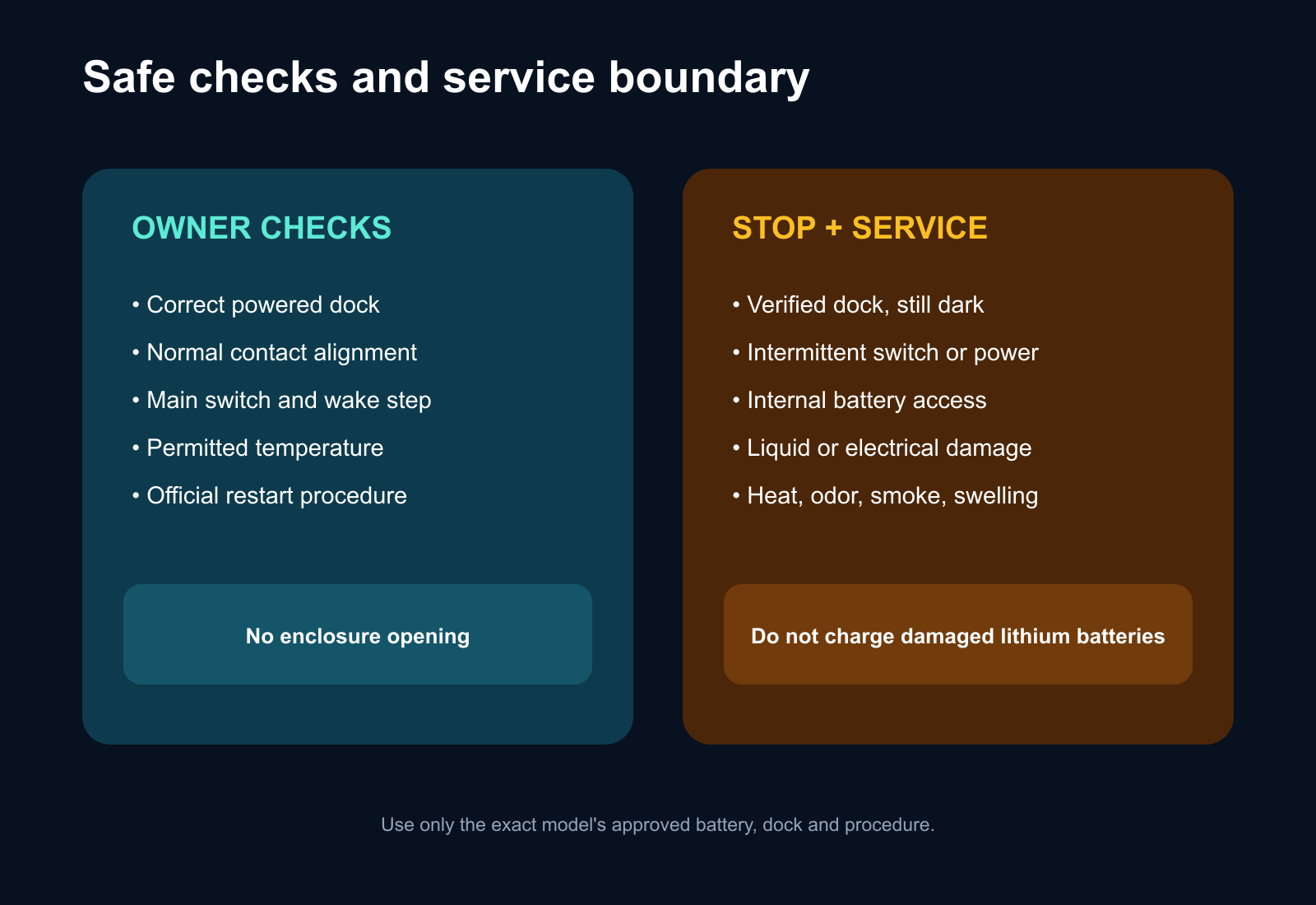
Do not open the battery or control enclosure. Stop immediately for swelling, unusual heat, burnt odor, smoke, melted plastic, damaged electrical parts or suspected liquid intrusion.
No-Power Symptoms at a Glance
| What happens | Leading area to check | First safe action |
|---|---|---|
| No lights after long storage | Deep discharge, storage state or battery | Place on the approved powered dock and record response |
| Dock reacts but robot remains dark | Seating, contacts, power switch, battery or internal fault | Confirm normal alignment and exact wake procedure |
| Robot starts only while on dock | Battery, battery connection or charge state | Stop repeated missions and preserve the symptom |
| Button lights but cleaning will not start | Error, low battery, bin, lock, mode or software | Read the App and voice message |
| No response in very hot or cold conditions | Temperature protection | Move the intact robot to the permitted environment |
| Power returns after restart but fails again | Software, switch, battery or internal connection | Record timing and use service if repeatable |
| Heat, odor, swelling, smoke or liquid | Safety-critical electrical condition | Stop use and follow emergency guidance |
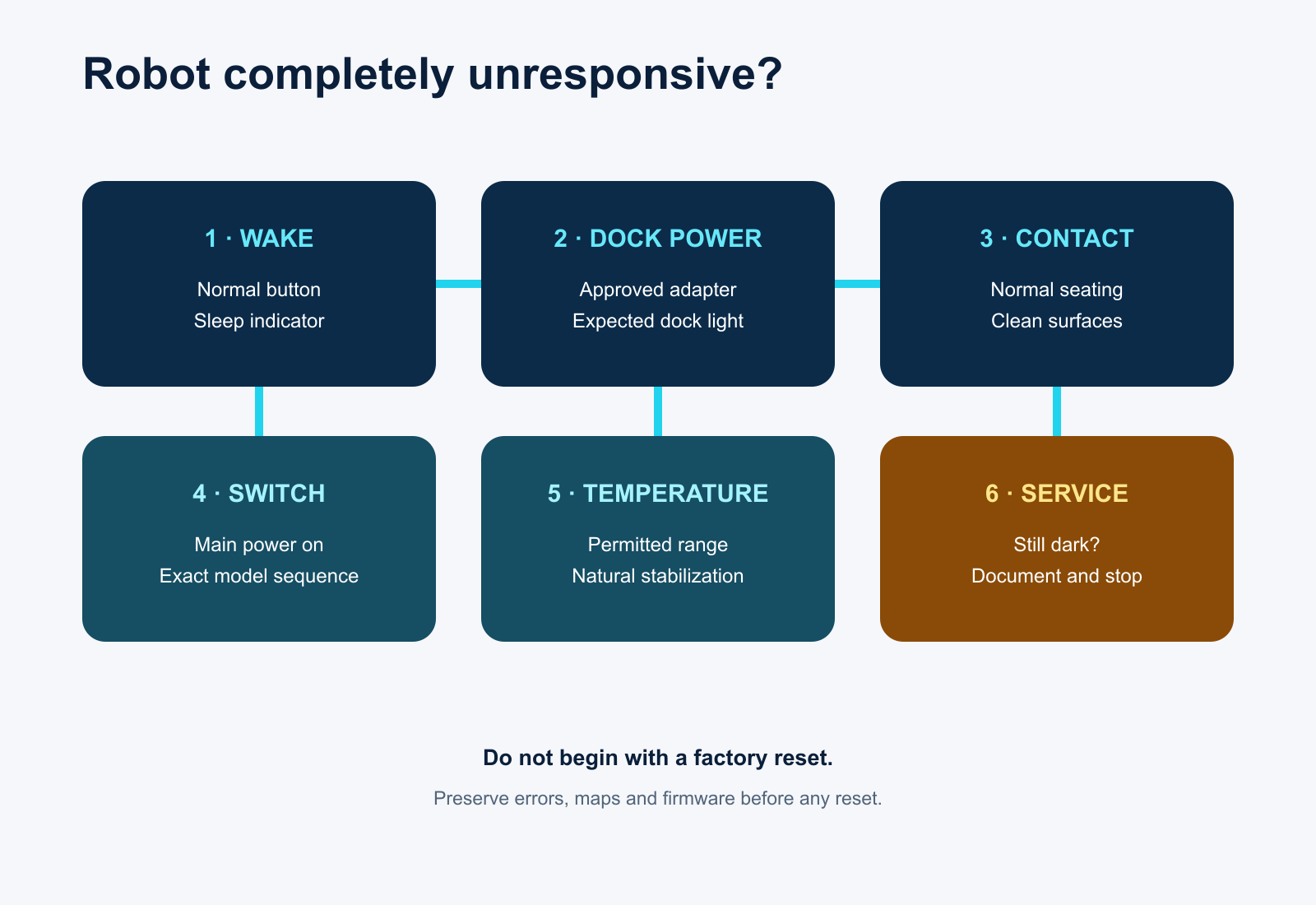
1. Confirm It Is Truly a Power Failure
A dark indicator is not always proof that the robot is off. Some products turn off lights while docked, enter sleep after inactivity or take time to wake from a fully exhausted state.
Press the normal wake or power control once as the manual describes. Listen for tones and check the App only as secondary evidence. If the robot responds but refuses to clean, preserve the exact error; a full bin, child lock, low charge, missing component or paused mission is different from no power.
2. Check the External Charging Path
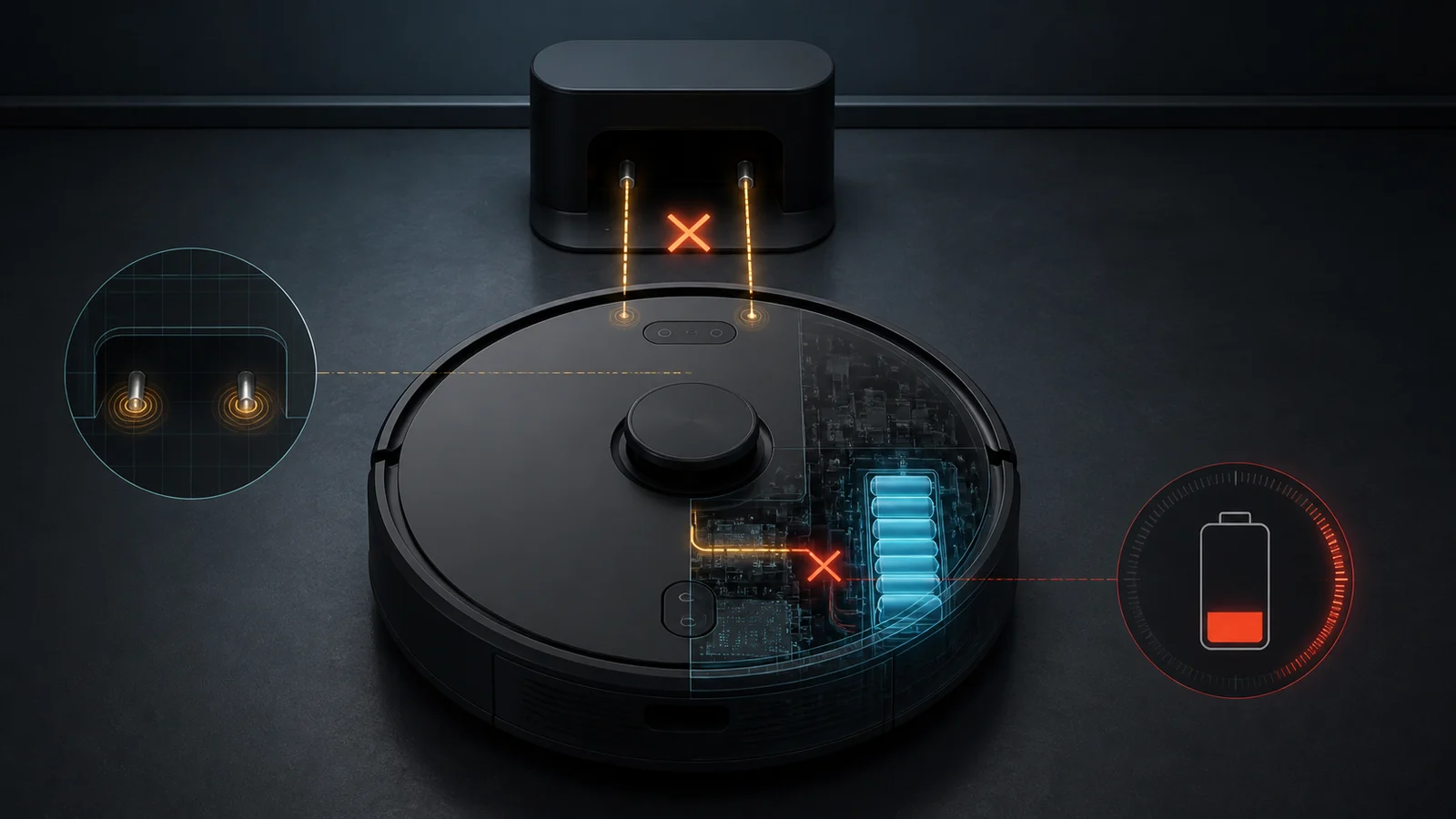
Confirm that the correct dock and adapter are connected, any dock switch is on and the robot sits normally on the charging contacts. Do not assume an adapter is compatible because the plug fits.
Look for the expected dock and robot indicators. If the robot does not gain charge, follow the separate robot vacuum not charging guide. A no-power symptom cannot be diagnosed until the external charging path is known to work.
Clean only accessible charging surfaces using the method in the exact manual. Stop if a contact is burned, corroded, loose, stuck or works only when pressure is applied.
3. Check the Main Power Switch and Wake Sequence
Some robot vacuums have a physical main switch in addition to the top start button. eufy's official RoboVac guidance notes that supported models require the underside switch in the “I” position before the top button can start the robot.
Other robots use a long press, a paired-button restart or a model-specific ship-mode recovery. iRobot's current no-power guidance includes a special ship-mode sequence for certain newer families. That sequence should not be copied to unrelated models.
Follow only the exact product instructions. Do not force a switch, repeatedly cycle power or hold arbitrary button combinations found for another model.
4. Allow for a Fully Discharged Battery
A deeply discharged robot may not respond immediately after touching the dock. Confirm normal seating and leave it for the model-approved recovery period while monitoring for unsafe heat or odor.
Roborock and Dreame manuals commonly list low battery as a first cause of “unable to power on.” That category-level pattern does not establish how long every model should charge or which indicator it should show.
If the robot wakes but the battery drains unusually fast, use the fast battery drain guide. If it remains completely dark despite a verified powered dock and good contact, the battery or internal power path becomes more likely.
5. Check Temperature and Recent Storage
Battery-management systems may prevent operation outside the permitted temperature range. Roborock and Dreame manuals list temperature alongside low charge as a possible reason a robot will not power on, but their numerical limits vary by model.
Move an intact, dry product to the environment specified by its manual and allow it to stabilize naturally. Never heat it with a hair dryer, place it near a radiator, chill it, open the pack or bypass protection.
Record long storage, transport in a hot or cold vehicle, water exposure and the last successful charge. These details help service distinguish protection, deep discharge and hardware failure.
6. Use Restart or Reset Carefully
A restart may recover a temporary software state. A factory reset can remove Wi-Fi, maps, schedules and diagnostic evidence without repairing a battery or switch.
Use this order:
- preserve errors, firmware and App status;
- perform the normal wake sequence;
- confirm a stable charge;
- use the model-specific restart if officially instructed;
- use a factory reset only when the exact support procedure calls for it.
If the robot is stuck in an update state, follow the manufacturer's update-recovery instructions. Do not interrupt power repeatedly during a confirmed firmware installation.
7. Isolate Battery, Switch and Internal Faults
After external checks, useful patterns include:
- Starts only on the dock: battery capacity, connection or charge state is suspect.
- Starts after moving the switch, then fails again: switch contamination or hardware may need service.
- Shows charge but no buttons respond: software, control panel or main-board fault remains possible.
- Shuts off when brushes begin: battery voltage drop, motor load or protection may be involved.
- No response on a verified compatible service dock: the fault likely follows the robot.
These patterns help a service team; they do not authorize opening sealed assemblies or testing exposed battery terminals.
When to Stop and Use Service
Use authorized service when the powered dock and contact path are verified but the robot stays dark, the switch is damaged or intermittent, power fails repeatedly, the battery is not owner-serviceable, or a restart does not hold.
Stop all use for swelling, smoke, melting, unusual heat, burnt odor, cracked battery housing, liquid intrusion or damaged charging equipment. Follow the manufacturer and local emergency guidance; do not place a damaged lithium battery back on charge.
Provide the model, serial number, age, charger and dock identity, storage history, ambient condition, indicator behavior, charging response, firmware and a short video.
FAQ
Why is my robot vacuum completely dead?
It may be asleep, switched off, deeply discharged, outside its permitted temperature range or unable to receive power through the dock. Battery, switch and internal faults are also possible after external checks pass.
How long should I leave a dead robot vacuum on the charger?
Use the recovery period stated for the exact model. A fully exhausted robot may take time to wake, but heat, odor, swelling or no response after the approved procedure requires service.
Is the top Clean button the power switch?
Not always. Some robots also have a physical main switch. Check the exact manual rather than assuming the top start button controls all power.
Should I factory-reset a robot vacuum that will not turn on?
Not first. A factory reset can erase maps and settings and cannot repair a failed charging path, battery or switch. Preserve evidence and use the model-specific restart sequence first.
Does a robot vacuum need a new battery if it will not power on?
Not necessarily. Dock power, contact alignment, switches, temperature, sleep or software state can produce the same symptom. Verify the external path before replacing a battery.
Final Answer
When a robot vacuum will not turn on, confirm that it is truly unresponsive, then place it normally on the correct powered dock. Check accessible contacts, any main power switch, the exact wake sequence and the permitted temperature range. Allow only the manufacturer-approved recovery time for deep discharge.
Use a model-specific restart after preserving evidence; do not begin with a factory reset. Persistent no-power symptoms or any heat, swelling, odor, smoke, liquid or electrical damage require authorized service.