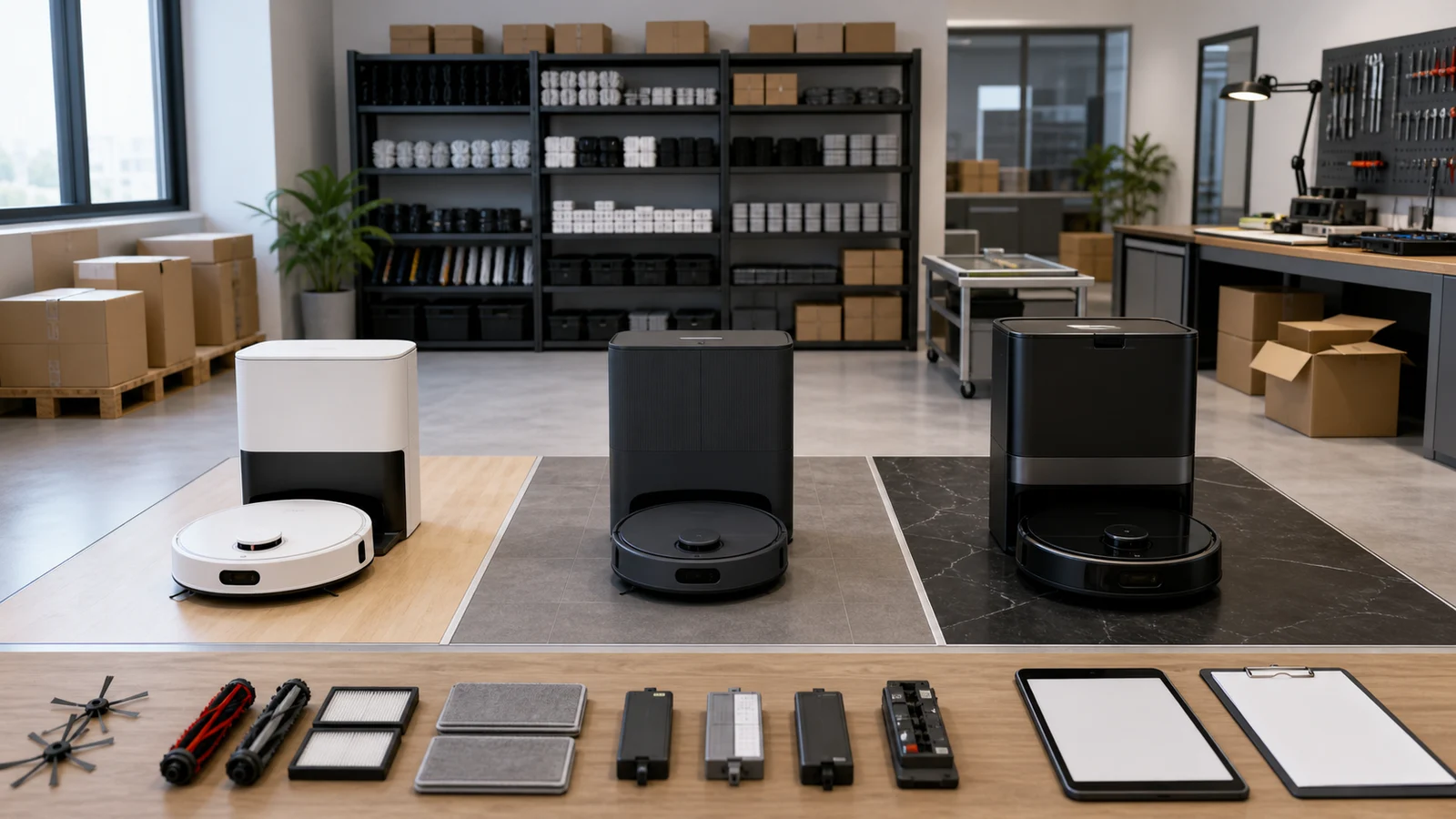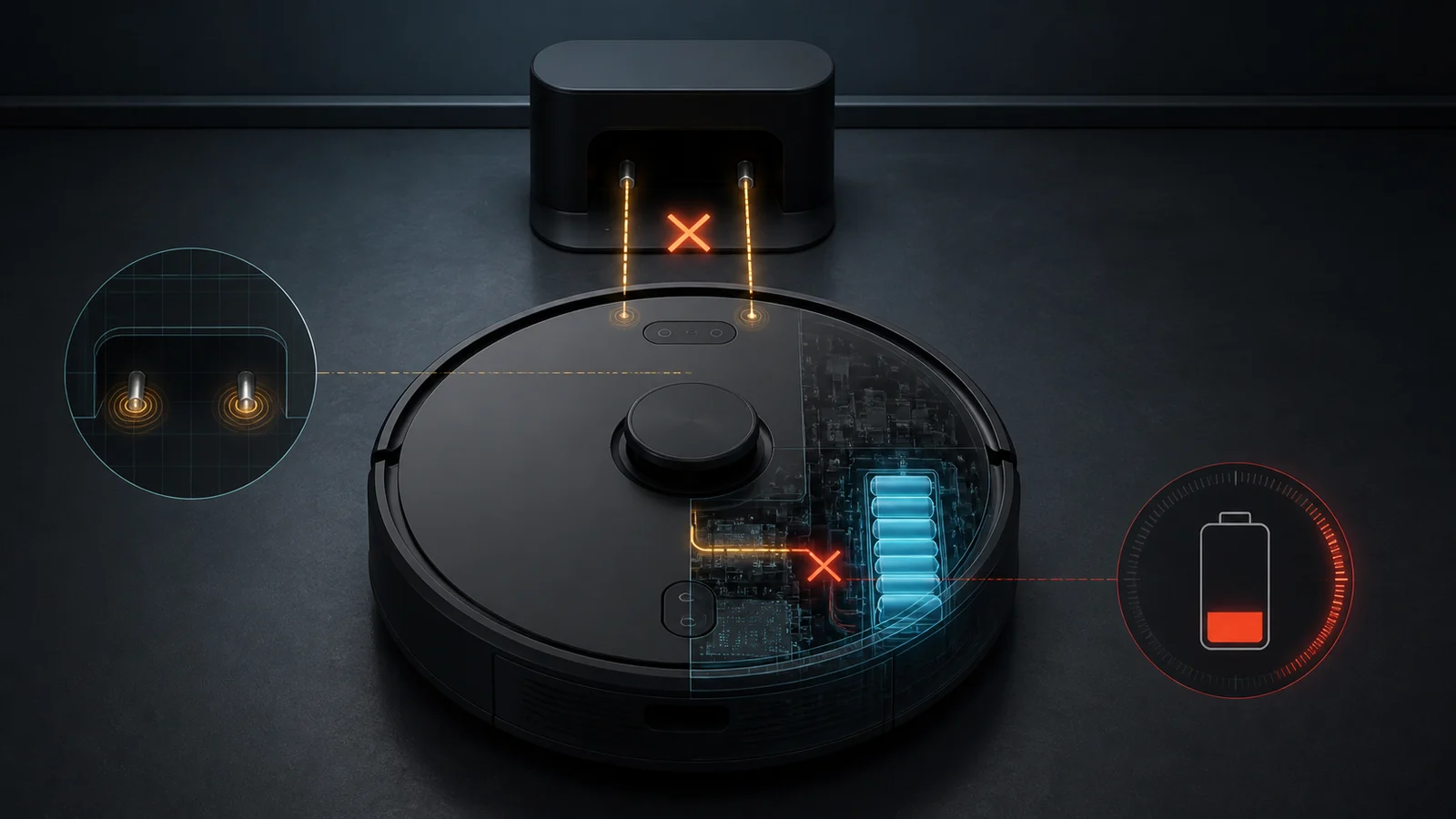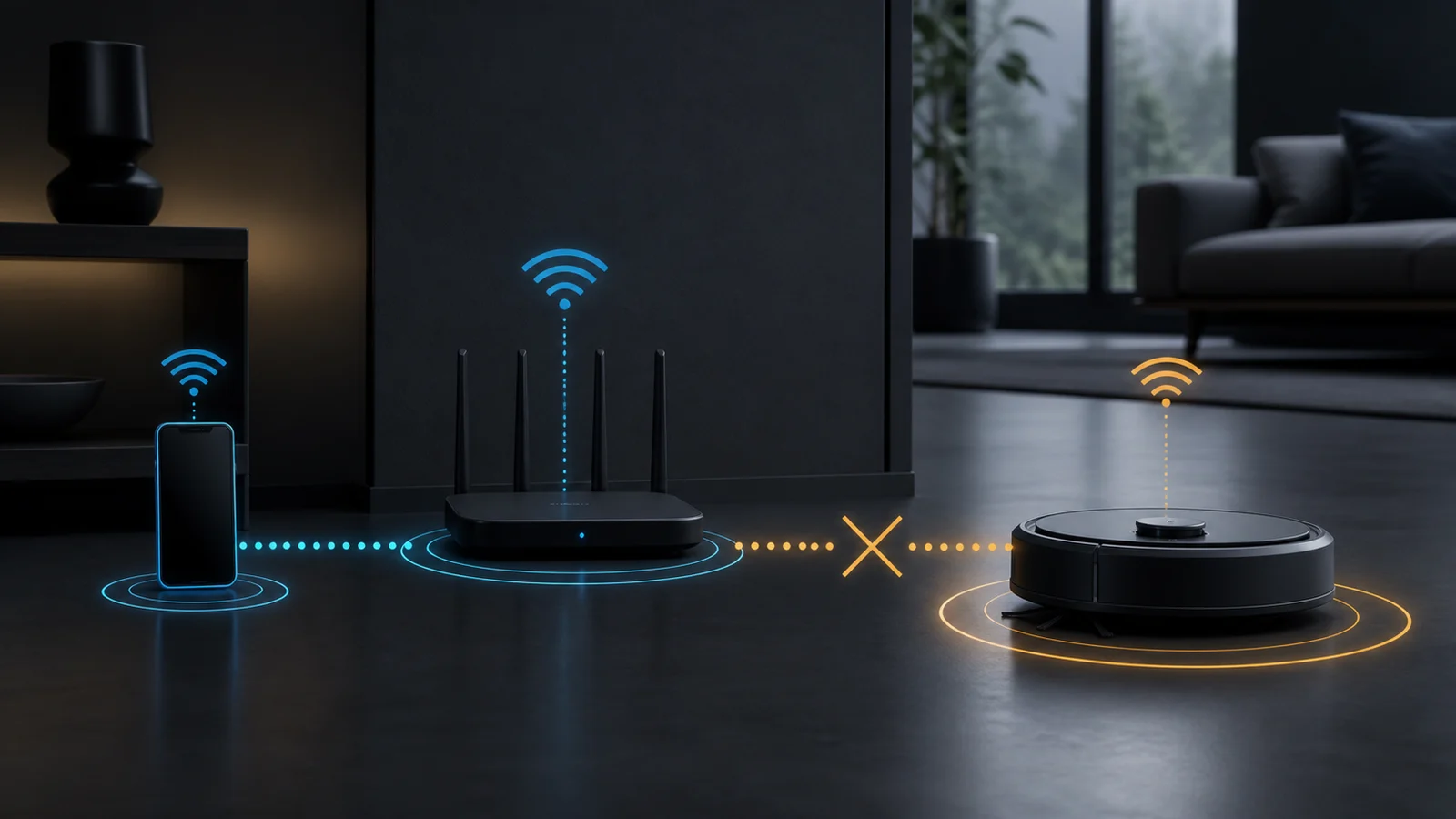
- Confirm the exact robot's network support before changing the router: many models require 2.4 GHz, while some newer products also support 5 GHz.
- Separate first-time pairing from a robot that was connected and later went offline; the useful checks and evidence are different.
- Check phone permissions, credentials, signal, security mode and the model-specific Wi-Fi reset sequence before deleting maps, factory-resetting the robot or replacing hardware.
In this article 12 sections
If your robot vacuum will not connect to Wi-Fi, first confirm the exact model's supported network band and security requirements. Then keep the robot, phone and router close together, verify the App's Bluetooth and location permissions, enter the network credentials manually, and use the model-specific pairing or Wi-Fi reset sequence. Do not assume every robot is 2.4-GHz-only: support varies by model.
Also separate a first-time setup failure from a robot that worked before and has gone offline. A first-time failure often involves band, credentials, permissions or pairing mode. A previously connected robot points more strongly to a changed password, router replacement, weak coverage, mesh behavior, firmware, cloud service or a network policy change.
Robot Vacuum Wi-Fi Problems at a Glance
| What happens | Main area to check | First action |
|---|---|---|
| App cannot find the robot | Robot power, pairing mode, Bluetooth, location permission | Confirm the exact activation sequence and phone permissions |
| Robot is found but network is rejected | Band, password, security mode, SSID or router policy | Verify model compatibility and type credentials manually |
| Setup stops while joining the robot hotspot | Phone switching networks, permission, VPN or mobile-data behavior | Follow the App sequence without leaving or closing it |
| Robot connects near the router but not at the dock | Weak signal, interference or dock location | Compare signal at the normal dock position |
| Robot worked before but is now offline | Changed router, password, SSID, firmware or service | Identify what changed before resetting anything |
| One phone works and another does not | App version, OS, permission, VPN or phone setting | Compare App version and permissions on both phones |
| It works on a hotspot but not the home router | Router band, security, isolation, DNS or firewall policy | Review the router's compatible IoT settings |
| Multiple smart devices fail at once | Router, internet connection or cloud service | Check the network and official service status first |
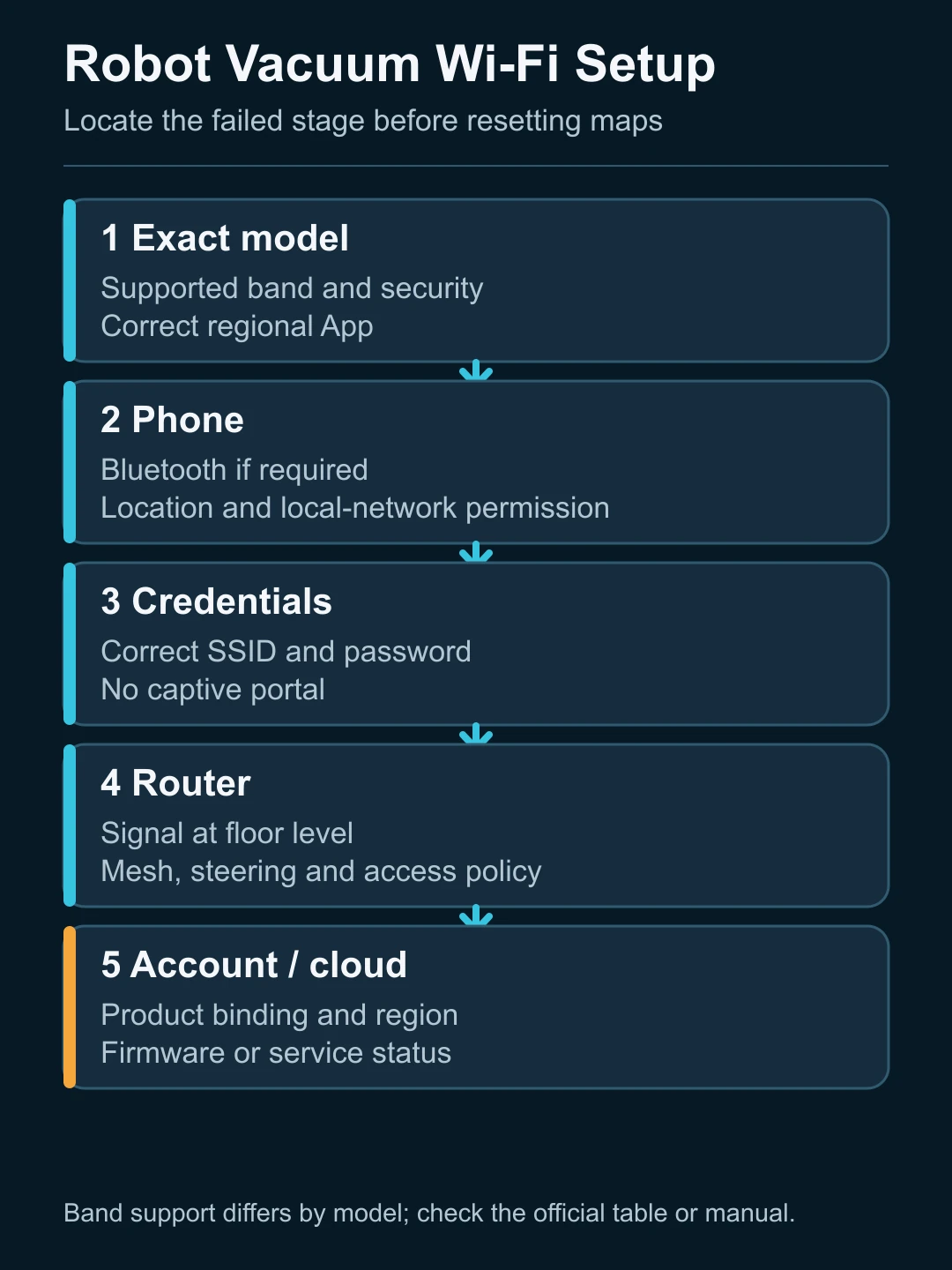
First Identify the Failure Stage
Wi-Fi setup is a chain, not one connection:
- the robot must have power and enter pairing mode;
- the phone must discover or temporarily connect to the robot;
- the App must pass the home-network credentials;
- the robot must join the router;
- the router must provide local and internet access;
- the App account and cloud service must recognize the product.
Record the exact screen or voice prompt where the process stops. "Cannot connect" at robot discovery is different from an authentication failure after the password is entered.
Before resetting, capture:
- exact robot model, market version and serial number;
- App name and version;
- phone model and operating-system version;
- router or mesh model;
- network name, but never publish the password;
- whether 2.4 GHz and 5 GHz use one SSID or separate names;
- security mode shown in the router;
- the exact App error, robot voice prompt and indicator pattern;
- whether setup is new or the robot was previously connected;
- recent changes to router, password, ISP, mesh, VPN, phone or firmware.
This record makes troubleshooting reversible and keeps a dealer or support team from asking the customer to repeat destructive resets.
Check the Exact Model's Wi-Fi Support
Many robot vacuums support only 2.4 GHz, but "all robot vacuums are 2.4-GHz-only" is no longer accurate.
Eufy's current RoboVac network guidance says the covered RoboVacs use 2.4 GHz and not 5 GHz. Roborock's Qrevo Master manual also states that model supports only 2.4 GHz.
By contrast, iRobot's current Wi-Fi setup table lists model-by-model support: several Roomba families support both 2.4 and 5 GHz, while others support only 2.4 GHz or no Wi-Fi at all.
The correct rule is therefore:
- look up the complete model, not just the brand;
- confirm supported bands and security modes in the current manual or support page;
- put the phone on a network the robot can use during setup;
- do not disable newer router features permanently without understanding the security effect.
Keep the Robot, Phone and Router Close During Setup
The robot can have adequate Wi-Fi in the room but poor signal at floor level behind furniture, near metal appliances or inside a distant dock recess. Initial setup also involves direct communication between phone and robot, which can fail even when the internet itself works.
Dreame's current first-time network setup guidance asks users to keep the robot and phone close to the router with a stable signal. Use that as a diagnostic principle, not as a universal distance specification.
Test setup in a normal, safe position near the router. If it succeeds there but fails at the operating dock, the remaining problem is coverage or interference, not credentials.
Do not relocate a dock into an unsafe approach, stair edge, wet area or place prohibited by the product manual merely to improve signal.
Verify Phone Permissions and App State
Modern setup often uses Bluetooth and location services to discover the robot before Wi-Fi credentials are transferred. A permission denied earlier can remain hidden behind a generic connection error.
Check:
- the correct official App is installed for the model and region;
- the App and phone operating system meet current requirements;
- Bluetooth is on when the setup process requires it;
- location and precise-location permissions are enabled when required;
- local-network permission is enabled on platforms that expose it;
- the App is allowed to stay active during pairing;
- a VPN, privacy relay, ad blocker or security App is not interrupting discovery;
- the phone has not automatically abandoned the robot's temporary network.
Dreame's setup page specifically identifies Bluetooth and location permission as requirements for the covered process. iRobot's instructions also describe Bluetooth and location use during compatible-model setup.
If another phone completes setup while the first cannot, compare the phone and App environment before blaming the robot or router.
Re-enter the Network Name and Password Carefully
Authentication failures are often simple but difficult to see. Enter the password manually and verify capitalization. Make sure the selected network is the intended home network, not a similarly named guest, extender or 5-GHz-only SSID.
Avoid exposing credentials in screenshots or support tickets. A legitimate support workflow may need the error and router configuration, but it should not need the customer's Wi-Fi password in plain text.
Potential compatibility issues include:
- unsupported security mode;
- enterprise authentication or captive portal;
- guest-network client isolation;
- hidden SSID behavior;
- unsupported characters on a specific older setup process;
- MAC filtering or access-control lists;
- a device limit or exhausted DHCP pool.
iRobot's current setup page says Wi-Fi support and security compatibility vary by model and notes that some covered products do not support WPA3. Do not apply that limitation to every robot; verify the exact model.
Mesh Networks and Band Steering
Mesh routers often combine 2.4 and 5 GHz under one network name. Some robots connect normally through band steering; others struggle during first-time setup.
If the exact model is 2.4-GHz-only:
- review the mesh manufacturer's official IoT onboarding procedure;
- use a temporary 2.4-GHz or IoT network if the router officially supports it;
- keep the phone on the compatible network throughout setup;
- restore normal settings only after confirming the robot remains connected;
- avoid turning off security protections simply to force a connection.
Eufy publishes a separate mesh Wi-Fi troubleshooting page, which reinforces that a combined SSID can require a different onboarding method. The router's own documentation remains authoritative for how its bands are managed.
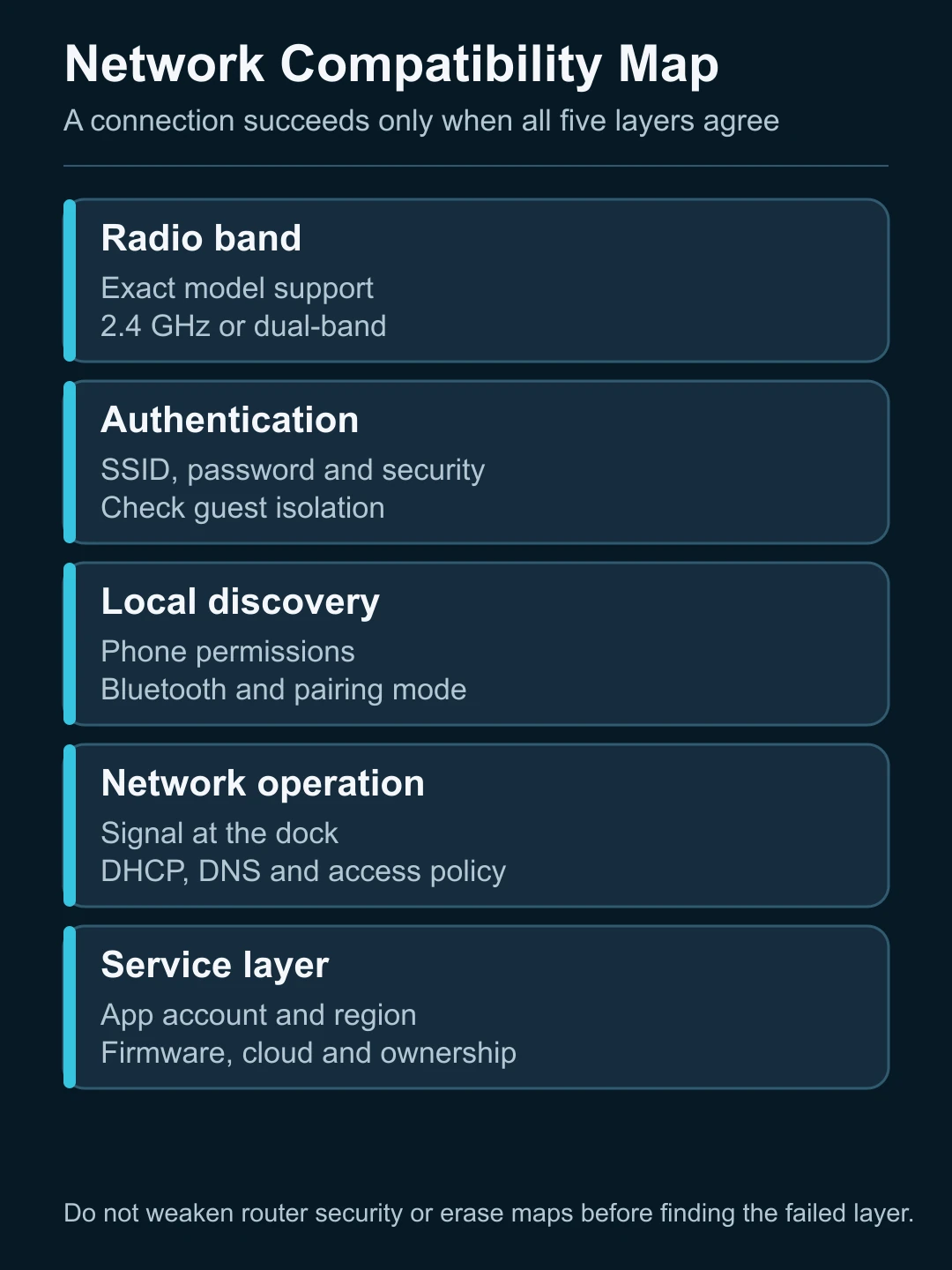
Use the Correct Wi-Fi Reset Sequence
A Wi-Fi reset should clear the robot's network state, not necessarily erase maps or perform a complete factory reset. Button combinations, hold times and voice prompts vary by model.
Use this order:
- restart the App and confirm permissions;
- restart the intact robot as the manual allows;
- reboot the router only when doing so will not disrupt critical devices;
- use the exact model's Wi-Fi reset or re-pairing procedure;
- reserve a factory reset for the manufacturer's documented escalation path.
Do not copy a button sequence from another brand or even another series. A factory reset can erase maps, schedules, room names, no-go zones and account associations without repairing an incompatible router setting.
If the Robot Was Connected and Later Went Offline
Ask what changed immediately before the failure:
- new router or ISP equipment;
- changed SSID or password;
- router firmware or security-mode update;
- moved dock or new interference source;
- App or robot firmware update;
- account, region or ownership transfer;
- prolonged power outage;
- cloud service disruption.
If every smart device is offline, begin with the network. If only the robot is offline but still cleans locally, preserve its maps and account state while checking signal, credentials and official service notices.
For a sold, returned or transferred robot, the previous owner's account binding can be a separate issue from Wi-Fi. Dealers should define a secure unlinking and data-reset process before resale. World Clean Biz's robot vacuum distributor guide explains why App, returns and account support are part of the product's real service cost.
When to Contact Support
Escalate when:
- the exact model does not appear in the correct App;
- pairing mode cannot be entered despite adequate charge;
- the robot cannot see a compatible nearby network;
- multiple phones and a known-compatible network fail at the same stage;
- a required firmware or account action cannot complete;
- the robot disconnects repeatedly at strong signal;
- account ownership, region or cloud status is uncertain;
- router changes would weaken security or disrupt managed networks.
Provide the model, serial number, App and OS versions, router model, band and security mode, exact error, time of failure and attempted steps. Never include the network password.
FAQ
Why does my robot vacuum only connect to 2.4 GHz Wi-Fi?
Many models use 2.4 GHz because of its range and IoT chipset design, but support is model-specific. Some newer robot vacuums support both 2.4 and 5 GHz. Check the exact manual.
Should my phone also be on 2.4 GHz during setup?
If the robot supports only 2.4 GHz, manufacturers commonly require or recommend that the phone use the compatible network during setup. Follow the model's current App instructions.
Why can the App see my robot but not connect it to the router?
The phone-to-robot discovery stage may be working while the robot-to-router stage fails because of credentials, band, security mode, signal or router policy.
Will resetting Wi-Fi delete my robot vacuum map?
A network reset and full factory reset are not always the same. Use the exact model's Wi-Fi reset procedure and confirm what data it preserves before proceeding.
Can a mesh router stop a robot vacuum connecting?
Yes, especially during onboarding of a 2.4-GHz-only product on a combined-band SSID. Use the mesh manufacturer's IoT setup procedure rather than disabling features blindly.
Can I use a phone hotspot to test the robot?
Some manufacturers use a second phone or hotspot as a diagnostic comparison. It can show whether the home router is the limiting stage, but it does not prove long-term compatibility or replace the normal secure home network.
Final Answer
When a robot vacuum will not connect to Wi-Fi, identify where setup stops, verify the exact model's band and security support, and then check phone permissions, credentials, signal and router policy in that order. Use the model-specific Wi-Fi reset only after preserving maps, errors and account information.
The goal is not simply to "make 2.4 GHz appear." It is to prove whether the failure sits between phone and robot, robot and router, or router and cloud without weakening network security or erasing useful evidence.